

Batch Orders from a File
Take a list of orders in a file or pasted text into previewed, priced orders. Show the whole batch back for approval, let the user adjust rows and re-check, and submit only once the user confirms all.
Token cost
- Input
- 3k – 12k
- Output
- 500 – 2k
A rough estimate for one run, covering the prompt itself plus the data the assistant pulls back from the tools it calls. Your actual usage depends on the model, the size of your portfolio, and how much the assistant retries.
The prompt
> **This prompt places live orders.** Nothing is submitted until you approve the full batch, and the approval gate below is the part to leave alone. Read it end to end before running it.

## 1. The prompt

Use my connected Light Horse account.

**Step 1 — Get the batch.** If I gave you a file path, read that file. If I pasted rows into the chat, use those. Do not invent, extend, or infer rows I did not provide, and do not proceed on a partial read — if the file cannot be read, say so and stop.

**Step 2 — Parse and validate.** The columns are described in section 2. Check every row: `side` is `buy` or `sell`, `symbol` is present, and at least one of `quantity` or `amount` is a positive number. List any row you cannot parse, with the reason and the row number, and leave it out of the batch — never silently drop a row or guess at what it meant.

**Step 3 — Turn each row into order parameters.**
- `side` maps to `side`.
- A **limit price present** means `type: "limit"` with that `limitPrice`. An **empty limit price** means `type: "market"` and no `limitPrice`.
- A **quantity** means `quantityType: "qty"` with `qty` set. A **dollar amount** means `quantityType: "amount"` with `amount` set. **When a row has both, use the quantity and ignore the dollar amount** — and say so explicitly for that row when you show me the batch, so I can see the amount was not used.
- Use `extendHours: "reg"` for every order unless I tell you otherwise.

**Step 4 — Preview every order.** Call `preview-order` once per row and keep the `confirmId`, the estimated cost, the share count, and any warnings it returns. If a preview fails — unknown symbol, insufficient buying power, a closed or restricted instrument — record the failure for that row and carry on previewing the rest. One bad row must not abandon the batch.

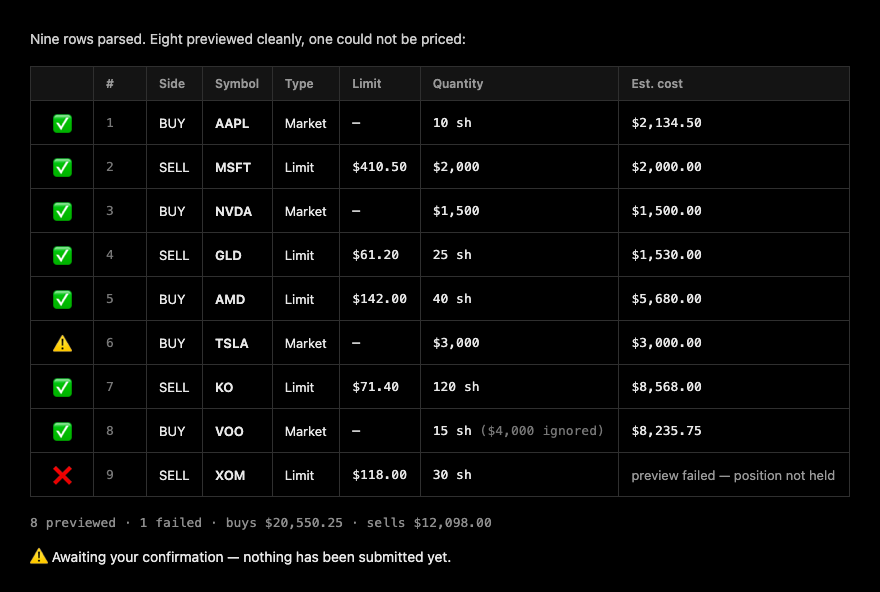
**Step 5 — Show me the batch, then stop.** Print every order you are about to place as a numbered table: row number, side, symbol, order type, limit price, quantity or dollar amount, the estimated cost from the preview, and any warnings or errors. Add the batch total and a count of orders that failed to preview. Lay it out as described in section 5, **inline in your reply** — do not write a file, do not offer a download, do not link out, and do not emit HTML or any other markup a client might not render. Then **stop and wait**. Do not call `place-order` at this point, and do not treat my having supplied the file as approval to trade.

**Step 6 — Take my adjustments.** If I ask you to change, remove, or add rows, apply exactly what I asked and then **re-run the preview for every order in the batch, not only the ones I changed**, so the whole set carries `confirmId`s from a single fresh round. Then show me the full table again as in step 5, and wait again. Repeat this for as many rounds as I want.

**Step 7 — Submit only on my explicit approval of the whole batch.** When — and only when — I confirm the batch as shown, call `place-order` for each row in file order, passing the `confirmId` from the most recent preview of that row. If I approve only part of the batch, place only what I named and tell me what you held back. Ambiguity is not approval: if my reply is anything less than a clear yes, ask again rather than submitting.

**Step 8 — Report what happened.** For each order, give me the row number, symbol, whether submission succeeded, the order id, and the status from `get-orders` — `filled`, `partialFilled`, `pending`, `rejected`, or `cancelled` — with the rejection reason where there is one. Lay this out inline in the same shape, using the result marks from section 5, and finish with a count of submitted, filled and failed orders. Report failures plainly; do not describe an order as placed unless the call actually returned success.

## 2. The file format

The file format is not strict, but the ideal is ne order per row, comma-separated, with an optional header. Blank cells are meaningful — an empty limit price is what makes an order a market order. This can also be separated by other delimiters or have columns in different order, or expressed in human language.

| Column | Required | Meaning |
| --- | --- | --- |
| `side` | yes | `buy` or `sell` |
| `symbol` | yes | Ticker, e.g. `AAPL` |
| `limit` | no | Limit price. Leave empty for a market order |
| `quantity` | one of | Number of shares |
| `amount` | these two | Dollar amount to trade |

## 3. Tools to call

| Step | Tool | Key arguments |
| --- | --- | --- |
| 4, 6 | `preview-order` | `instrument`, `side`, `type`, `quantityType`, `qty` or `amount`, `limitPrice` when limit, `extendHours: "reg"` |
| 7 | `place-order` | the same fields plus the `confirmId` from that row's latest preview |
| 8 | `get-orders` | `instrument`, or the whole day's orders, to read back each status |

## 4. Why the re-preview in step 6 matters

A `confirmId` ties an approval to the exact order that was priced. Once you edit a row, the batch you showed me is no longer the batch I agreed to, and the untouched rows were priced against a market that has since moved. Re-previewing everything in one round keeps a single rule true: what I approve and what gets submitted are the same set of orders, priced at the same moment. Reusing confirmIds from an earlier round to save a few calls quietly breaks that.

The same reasoning is why step 7 requires approval of the batch rather than of each order as it is previewed. Orders in a list like this are usually one decision — a rebalance, a rotation, a set of closes — and approving them one at a time invites a half-executed batch.

## 5. How to show the batch

Plain markdown, inline in the reply. No HTML, no styling, nothing that depends on the client rendering
markup — a batch the reader cannot see is a batch they cannot approve, and approval is the entire point
of the step. One row per order, in file order, every order shown. Never truncate the list and never
collapse rows into "and 6 more": if it is long, it is long.

**Status marks.** Lead every row with one of these. They are emoji rather than coloured text or letters
so the state survives plain markdown in any client:

| Mark | Meaning |
| --- | --- |
| ✅ | Previewed cleanly, or filled |
| ❌ | Preview failed, or the order was rejected or cancelled |
| ⏳ | Submitted and still pending, or partially filled |
| ⚠️ | Previewed, but the preview returned a warning worth reading |

**Columns.** Status, row number, side, symbol, order type, limit price, quantity, and a last column that
holds the previewed cost before submission and the fill price after:

```text
| Side | Symbol | Type | Limit | Quantity | Est. cost |
3 previewed · 1 failed · buys $3,634.50 · sells $2,000.00

⚠️ Awaiting your confirmation — nothing has been submitted yet.
```

- Use `—` for the limit price on a market order rather than leaving the cell blank.
- Quantity reads `10 sh` when the row was sized by shares and `$1,500` when sized by dollars. If a row
  carried both and the quantity won, write `10 sh ($2,000 ignored)`, so the discarded figure is visible
  in the row itself instead of being mentioned in passing.
- On a failed row, put the reason in the last column in place of a price.
- Close with the tally line, then the state line.

**The state line is not decoration.** Before submission it has to say, in as many words, that nothing has
been sent — that sentence is the visible proof the gate in step 5 has not been passed, and it stays until
orders actually go out. Afterwards, replace it with what happened: `✅ All 4 orders submitted.` or
`❌ 3 submitted, 1 rejected — see the rows above.`

**After submission** show the list of orders with status and fill price

```text
| Status | Side | Symbol | Type | Limit | Quantity | Filled at |
```

If a client cannot render a markdown table, fall back to one aligned line per order carrying the same
fields in the same order, with the status mark still leading the line.
This prompt is published as an example of how third-party AI tools can be used with a Light Horse account. It is not investment advice and not a recommendation to buy, sell, or hold any security, and neither the prompt nor any output it produces has been reviewed for suitability for you. AI assistants make mistakes — verify anything you act on. See the Third-Party Integration Disclaimer.